 Nutka
Nutka
User guide
Nutka searches YouTube Music, lets you listen first and saves the track as an mp3 with cover art and tags. It also downloads whole albums and playlists from YouTube and Spotify, and videos from YouTube. This page explains everything in order; the same copy opens from the app, also without internet.
Installation
Takes about a minute and needs no administrator rights.
-
Download the installer
The file Nutka-Setup.exe from the app page (the “Download” button) or from GitHub. You can also copy it from someone, e.g. on a USB stick.
-
Run it
Click Next. Tick “Desktop shortcut” if you want an icon on the desktop. The installer speaks English when your Windows does.
-
Finish
Leave “Launch Nutka” ticked and click Finish. Later you open Nutka from the Start menu or the shortcut.
Windows showed a blue “Windows protected your PC” box? Click More info, then Run anyway. This warning appears for every new app without a paid code-signing certificate and doesn't mean the file is dangerous. Nutka's code is fully public on GitHub.
Requirements: Windows 10 or 11 (64-bit), about 400 MB of disk space, internet for searching and downloading music.
The window
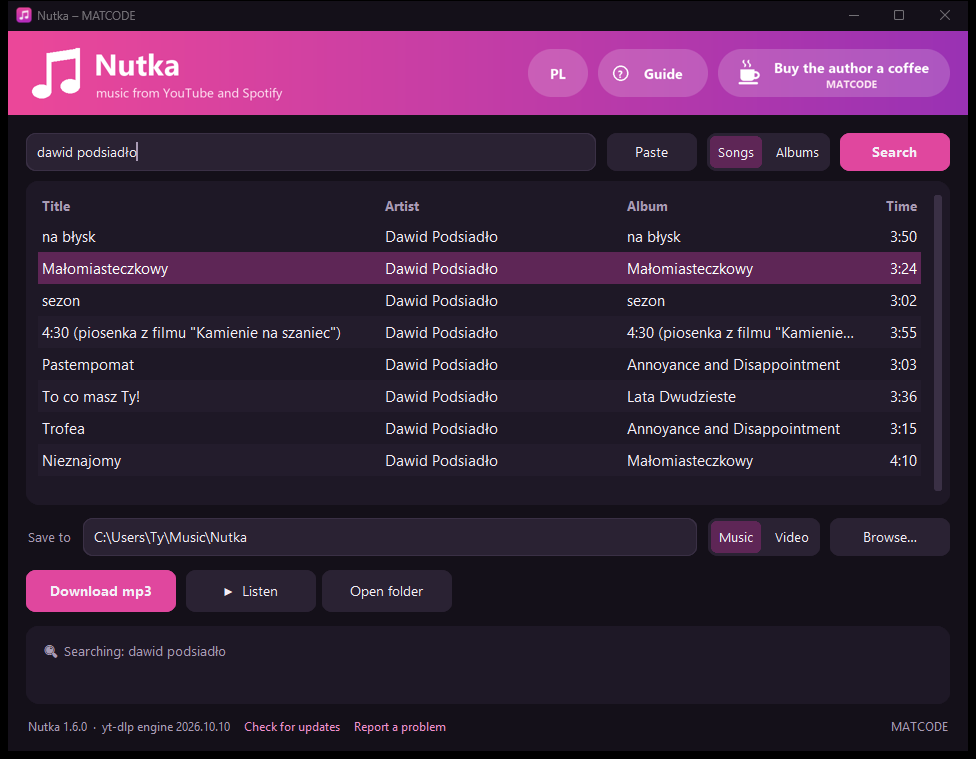
Search box on top, results in the middle, fields and buttons at the bottom.
- Box on top
- Type a title or artist, or paste a YouTube or Spotify link, and press Enter; the Paste button pastes a link from the clipboard and checks it right away. A playlist or album link opens a list, a link to a single video shows it as a row in the table.
- Songs / Albums
- Whether you are looking for single songs or whole records.
- Results list
- A click selects a track, a double-click downloads it right away.
- Right-click on a row
- Copies the link, opens the track in YouTube or Spotify, and shows a downloaded file in its folder.
- Music / Video
- Next to “Save to”: what you get from the download, an mp3 or an mp4 video. With “Video” a quality list appears next to it – details below.
- Save to
- The folder for downloaded files – one for music and a separate one for videos. Change it with the Browse… button.
- Download mp3 / Download video
- Downloads the selected result or the link pasted into the box on top – as an mp3 or a video, depending on the switch. While it runs, a progress bar with a percentage appears next to it.
- ▶ Listen
- Plays the selected track without downloading. While playing it turns into ■ Stop, and Next › appears next to it.
- Open folder
- Opens the folder with the downloaded files in Explorer.
- Box at the bottom
- Short messages: what is happening right now and whether it worked.
- Bottom-left corner
- The version number, the Check for updates link and Report a problem – Nutka checks what works, copies the report to the clipboard and opens a GitHub issue page with the report inside.
- Top-right corner
- Guide opens this page, also without internet. Buy the author a coffee opens a page where you can support the author if you like. PL switches the app to Polish.
Searching and listening
Type a track title or an artist and press Enter or Search. Results come from YouTube Music, so they land on the official versions of tracks. The Songs / Albums switch decides whether you are looking for songs or whole albums.
- A click on a result selects it – that's the one “Download mp3” downloads and “Listen” plays.
- A double-click on a result downloads it as an mp3 right away.
- ▶ Listen plays the selected track without downloading. With an album it plays the whole album in order.
- While playing, the button turns into ■ Stop, and Next › appears next to it, which skips to the next track of the album.
- Clicking another result while something is playing switches to the new track straight away.
Downloading mp3
Select a result or paste a link and click Download mp3. The progress bar shows the download, and the box at the bottom shows the title and finally “Done”.
| What you download | Where to get it | How |
|---|---|---|
| A track | the search box | double-click the result, or select it and click Download mp3 |
| An album | the search box, “Albums” switch | a double-click opens the track list with tick boxes – Download selected |
| A track from YouTube | a youtube.com/watch?v=… link | paste it into the box on top (the Paste button) – the video shows up as a row – and click Download mp3 |
| A YouTube playlist or album | a youtube.com/playlist?list=… link, or an album from the search | paste it into the search box and press Enter – you get a list with tick boxes, details below |
| A YouTube video (mp4) | a link to a video or a playlist | switch to Video, paste it into the box on top and click Download video, details below |
| A track, album or playlist from Spotify | in Spotify: Share → Copy link | paste it into the search box and press Enter, details below |
Files go to the Music \ Nutka folder (C:\Users\<you>\Music\Nutka). Change the folder with the Browse… button and open it with Open folder. An album and a playlist land in their own subfolder, an album with track numbers.
The music always comes from YouTube, also with Spotify links: Nutka takes only the title, artist and cover art from Spotify and downloads the audio from YouTube. That's why you occasionally get a different version of a track, e.g. a live one. The quality is mp3 at roughly 250–270 kbps.
Videos from YouTube
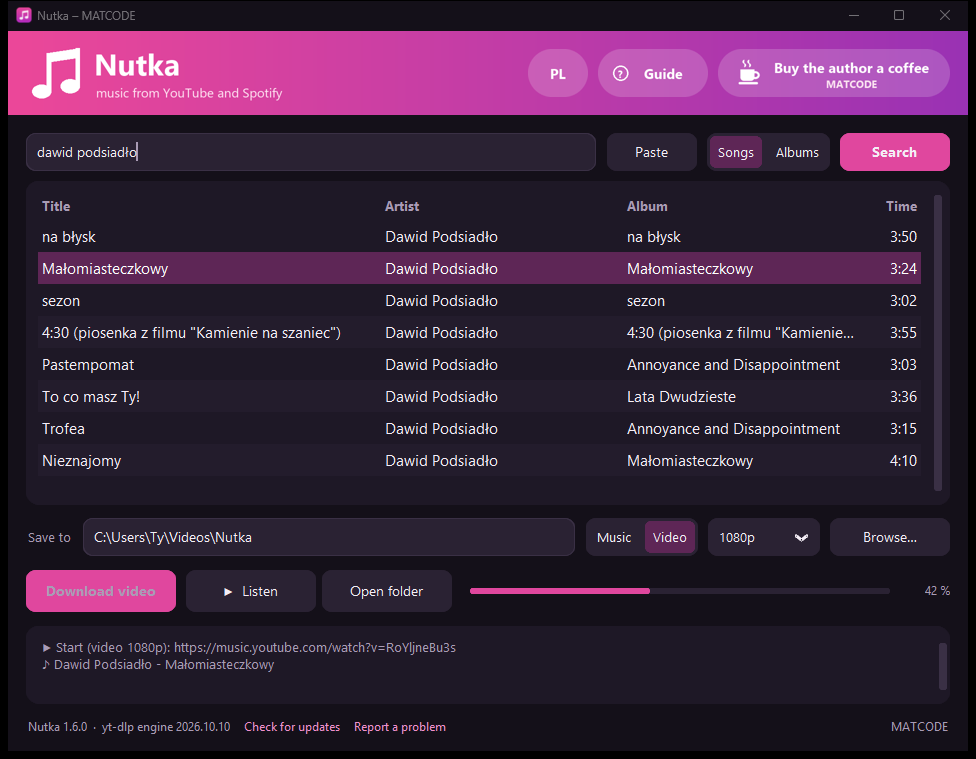
Nutka downloads video as well: a single video or a whole playlist, hours-long recordings included. Set the Music / Video switch next to “Save to” to Video, paste a link into the box on top and click Download video.
- Quality
- The list next to the switch: 1080p (default), 720p, 480p or Highest. Up to 1080p Nutka picks H.264 video and AAC audio, so the mp4 plays on a computer, a phone and a TV without extra codecs. “Highest” also takes 1440p and 4K when the video has them – such files are several times bigger, and older TVs may not play them.
- Folder
- Videos go to Videos \ Nutka (
C:\Users\<you>\Videos\Nutka), separately from music. The “Save to” field shows the folder of whatever you are downloading right now; change it with the Browse… button. - How much space
- An hour of 1080p video is usually 1–2 GB, 720p about half of that. YouTube keeps picture and sound separately – Nutka downloads both (the progress bar runs twice) and joins them at the end without re-encoding, so during the download the file briefly takes twice the space on disk.
- Playlists
- A playlist link in “Video” mode opens a list of videos with tick boxes – the same as for music. The ticked ones are downloaded into a subfolder named after the playlist; those you already have are unticked.
- Search results
- They work in “Video” mode too: select a result and click Download video. For YouTube Music tracks the “video” is often just the cover art.
- Spotify
- Always music. After loading a Spotify list Nutka switches itself to “Music”.
Playlists and albums – YouTube and Spotify
A whole playlist or album – from YouTube, YouTube Music or Spotify – takes three steps, and next time Nutka picks up only the new tracks.
Copy the link
On YouTube open the playlist or album and copy the address from the browser bar (
…/playlist?list=…). In Spotify, next to the playlist or album, click … → Share → Copy link. An album found in Nutka just needs a double-click.Paste it into Nutka
Into the search box, then Enter. After a few seconds you see the track list with tick boxes.
Download selected
Untick what you don't want (click the tick box or double-click the row) and click Download selected.
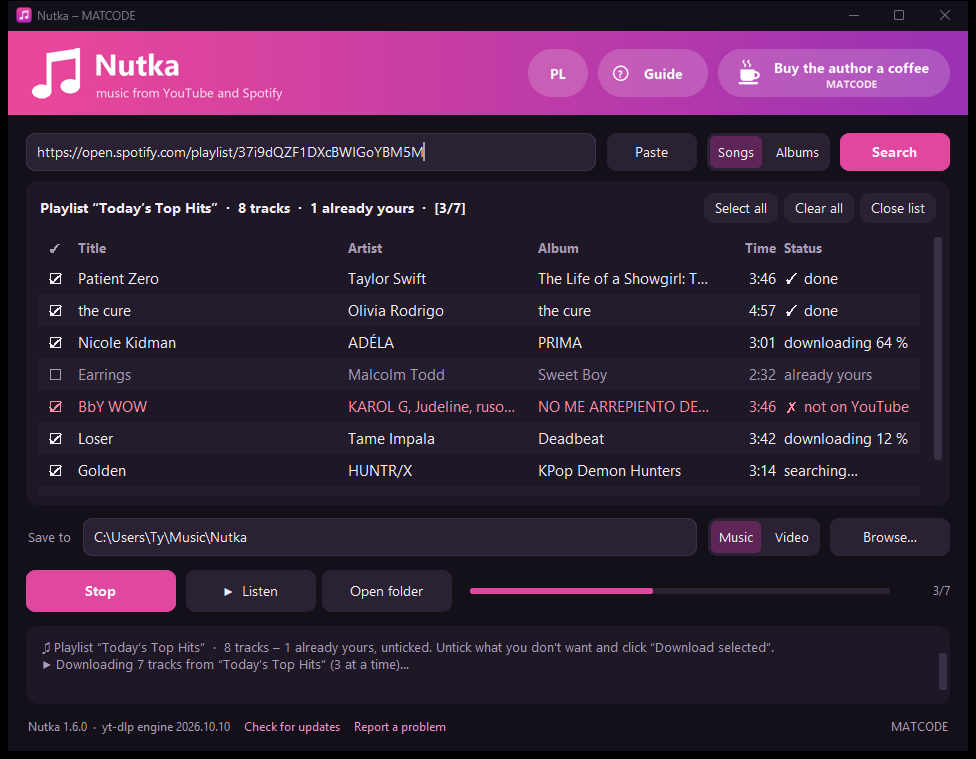
- Every track shows its status: searching, downloading 64 %, ✓ done or ✗ error. Nutka downloads 3 tracks at a time; Stop interrupts.
- Tracks you already have are marked already yours and unticked. Just load the playlist again to pick up the new ones.
- If something fails, those tracks stay ticked. Click Download selected again to retry.
- A playlist goes into a subfolder with its name, an album with track numbers. The files carry the title, artist, album and cover art from Spotify or YouTube.
- A YouTube list follows the Music / Video switch: in “Music” mode it downloads mp3, in “Video” mode mp4 videos in the chosen quality, into the videos folder. After switching, “already yours” is worked out again.
- Close list goes back to normal searching.
Nutka sees only public playlists (on YouTube also “unlisted” ones, available via a link). It can't load private playlists or Spotify's “Liked Songs”. Make the playlist public or copy the tracks into a public one.
Language
Nutka speaks Polish and English.
On first start the app follows your Windows language: Polish Windows gets Polish, any other gets English. The small PL / EN button in the top-right corner switches the language; Nutka restarts in the other language and remembers the choice. The guide and the installer come in both languages too.
Updates
Nothing to do, Nutka updates itself.
YouTube changes its site now and then, so at every start and every 6 hours the app quietly checks for a newer “download engine” and swaps it in. Without internet, or if the update fails, the app keeps working on the version it has.
When a new version of the whole app is out, Nutka shows a window with the list of changes. Click Update now: the app downloads the new version, installs it and restarts (about a minute). Remind me later closes the window until the next start, and Skip this version stops reminding you about it.
You can check manually with the Check for updates link in the bottom-left corner of the window. Your version number is next to it.
Every release is digitally signed with the author's key. Nutka verifies the signature and the checksum before running the installer, and downloads it only from the official releases page on GitHub.
When something doesn't work
| “Windows protected your PC” during installation | More info → Run anyway |
|---|---|
| Antivirus blocks the installer | in Windows Security: Virus & threat protection → Protection history → pick the blocked file → Actions → Allow on device; then run the installer again (other antivirus: restore the file from quarantine) |
| Searching or downloading doesn't work | check your internet; close and reopen Nutka (it updates itself at start) |
| One track won't download, the rest do | that video may be blocked on YouTube (e.g. age restriction); pick another result |
| A different version of a track came from Spotify | search for the track in Nutka and pick the right version from the results |
| A playlist won't load | check that it is public; Nutka can't see private playlists or “Liked Songs” |
| A downloaded video won't play on the TV | pick 1080p or lower – “Highest” gives 4K in the VP9 or AV1 codec, which older devices don't know |
| Pasted text isn't treated as a link | Nutka accepts only real YouTube and Spotify addresses (starting with https:// or the site name); other text goes to the search |
| The app is in the wrong language | click the PL / EN button in the top-right corner |
The problem keeps coming back? Click Report a problem in the bottom-left corner of the window. Nutka checks what works, copies the report to the clipboard and opens an issue page on GitHub in your browser with the report inside – describe what doesn't work and submit it (a GitHub account is needed). Without an account: open the app folder (%LOCALAPPDATA%\Programs\Nutka), click the Explorer address bar, type cmd, press Enter, then in the black window type Nutka.exe --autotest > report.txt – the file report.txt shows what is missing.
Uninstalling
Go to Settings → Apps → Installed apps, find Nutka and choose Uninstall. The app is removed entirely, together with the updates it downloaded. Your mp3 files in the Music \ Nutka folder stay.